Example Hegepedia Entry
A short and punchy intro text goes here. It should summarize the gist of the whole entry and make the reader curious to read on. On mobile, this text will be shown right above the infobox.

This is an Infobox
On mobile this infobox takes the full width of the screen. On desktop it floats out to the right.
You can put whatever you want here. The content will be parsed as regular Markdown.
Level 3 Heading
The infobox is a good place to put key data.
- Age
- ?
- Gender
- Male
- Height
- 151 cm
- Weight
- 40 kg
- Species
- Hedgehog
Notable information
- Occupation
- Waiter at the Hegilton Hotel
- Student at Hegeville High
- First appearance
- Prickly Past, Punctured Heart
Here Is a Level 2 Heading
This is normal paragraph text.
On mobile, this first section is shown right below the infobox.
You can use regular Markdown for bold and italic.
Another Level 2 Heading
Here is some more text, just to make this look like a real entry.
I could fill this paragraph with a bunch of generated so called Lorem Ipsum text. But that’s not very good. You want to see how the page looks with real text that you can actually read, not just some generated garbage that the brain automatically filters and ignores.
So that’s why I wrote these three paragraphs in real English.
Lots of Lists
Lists are great. Here’s a bunch of different ones you can use.
First a regular unordered list:
- Item One.
- Item Two.
- Item Three.
- And finally a really really really long list item that for sure will wrap the line, because we need to make sure that works, too.
Then an ordered list:
- I’m in spot number 1!
- I follow on the second spot.
- I snagged the third place.
- And finally here I am, a lowly four, but a really really really long four because I need to make to sure wrap the line.
Then a definition list:
- Term 1
- Definition 1
- Term 2
- Definition 2
- A second definition 2
- Term 3
- A really really really long definition that spans at least one line, maybe even more than that if this goes on.
And with that list, this list of lists is complete.
References Within the Entry
Use references to show where information came from wherever you can.
Use the hp/ref shortcode to include a reference. It will show up as a number within square brackets, linked to the list of references at the bottom of the entry.
Here is an example: [1]
And here is a second one: [2]
Links to Other Entries
You can (and should) of course link to other entries in the Hegepedia.
Use the shortcode hp/elink to do this.
If you call it with one argument, it will use the entry’s title for the link text, like this:
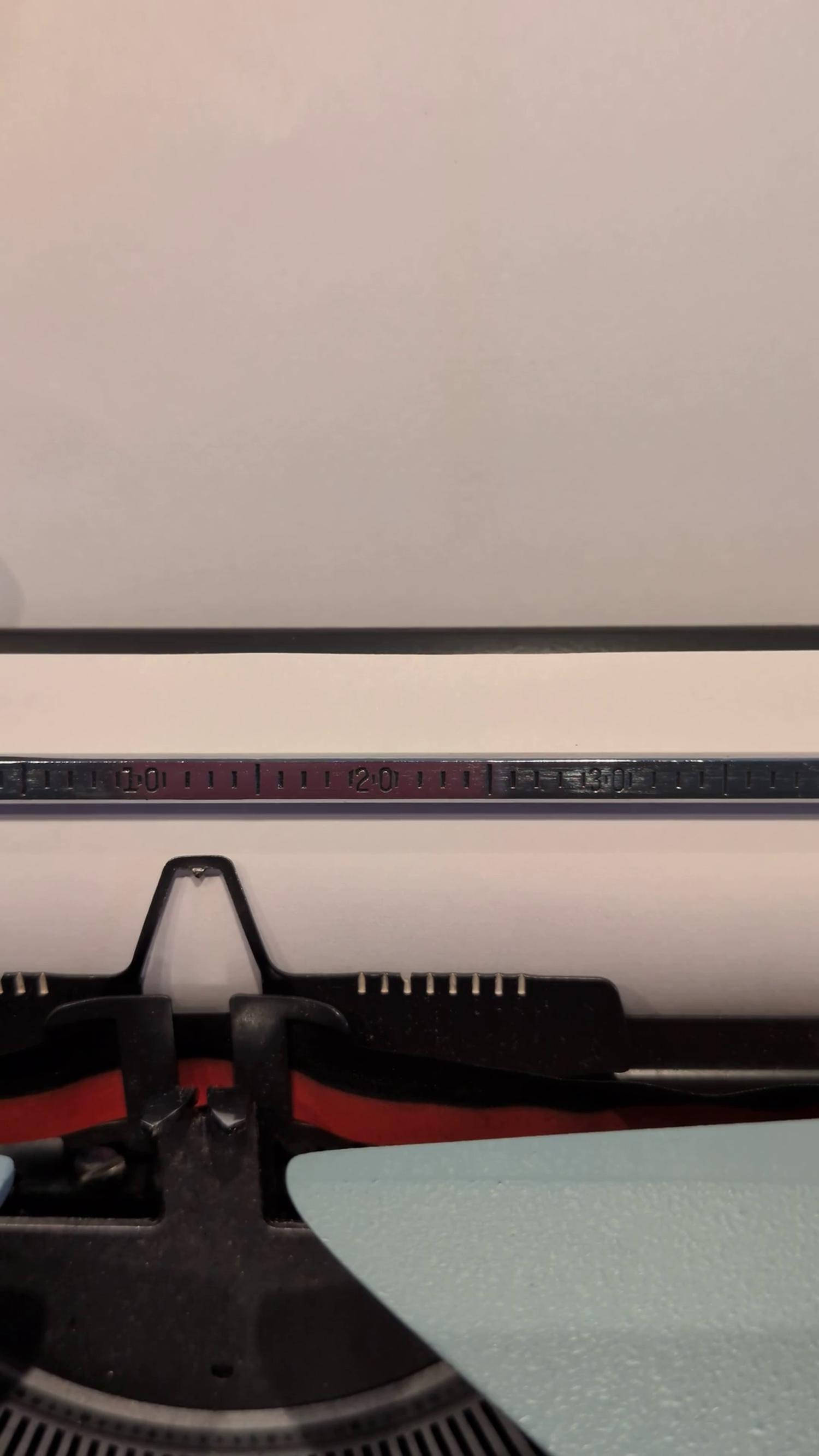
The TypewriterIf you call hp/elink with two arguments, it will use the second argument as the link text, like this:
As you see above, links within Hegepedia will automatically have a little magnifying glass added after them, to show that they lead to another Hegepdia entry.
To link to many entries at once, use the hp/elinks shortcode.
The hp/elinks shortcode can also list all entries with a given tag:
Or a combination of tags (all tags need to match):
When you link to many entries at once like this, you can not set custom link texts.
Links to Other Entries With Thumbnails
Use the shortcode hp/ethumb to link to another entry showing its thumbnail instead of a text link. Pass in the id as the first argument, and optionally a custom caption as the second argument.

Use hp/ethumbs to link to multiple entries.

hp/ethumbs can also list all entries with a given tag:


Like with text links, when you link to many entries at once, you can not set custom captions.
Use the thumb_id parameter on any entry to set the gallery image to use as the thumbnail for that entry.
Gallery Items (Images and Videos)
Images and videos are stored as individual items in the gallery (technically each gallery item is a Hugo “Page”).
You can easily include them as figures in the entry using the g/fig shortcode.
Wrap figures in the g/list shortcode to display them as thumbnails, like below.
- The first figure below is a single image.
- The second has a custom caption.
- The third shows how to disable the caption by setting it to the empty string.
- The fourth is a video, which is inserted using the same shortcode as images.
If you click one of these figures, they will be shown in the media viewer. (Click the “i” icon inside the media viewer to go to the details page for that gallery item.)
Listing Multiple Images and Videos at Once
Use the g/figs shortcode to list multiple gallery items at once. It will automatically wrap the figures in a list view.
Use the parameter tag to list all items with the specified tag. Here are all the items tagged “metanarrative”, for example:
When listing multiple items at once like this, you cannot set custom captions.
And Finally, the References
Here is a list of references, using the hp/reflist and ht/reflink shortcodes:
This page was 100% written by human with ❤️.