How We Rebuilt the Hege Website to Get a Perfect PageSpeed Score. Part 2: Optimize Fonts
Continuing our journey to PageSpeed Paradise, this week we turn to fonts, showing how compression and heavy subsetting brought 3 MB of unoptimized font files down to a minimal 18 kB.
The Quest for the Fastest Memecoin Website Continues
Last week here on the blog, we told you about our very own Head Speedmaster Monkey and how he pulled off the perfect score on the PageSpeed Insights test. It was quite the story actually, so make sure to go read it if you haven’t already.
If you did read it, and if your memory is good, you will remember that we covered step 1 of the process, which was to serve static HTML over a fast Content Delivery Network, then fingerprint assets, and finally say no to cookies.
This week we’re picking up right where we left off, and we’ll dive deep into the next step of the process: optimizing fonts.

Step 2: Optimize Fonts
Yes, fonts.
Why?
Because unoptimized fonts can completely ruin website performance.
As an illustration of how bad it can get, consider this. When building our old site, our previous webmonkey used an uncompressed TTF version of our headline font. This TTF weighed in at 2.5 megabytes. Yes, that’s 2.5 megabytes of font data that the browser had to download before the page could be fully rendered. On a slow mobile connection, that’s over 12 seconds!
If you use custom fonts on your website, optimizing them properly can be the biggest speed unlock you can make.
Alright alright. You get it. Let’s dive in to some details.
Level 1: Self-Host, Subset, and Use WOFF2
Basics first. The entry level is to self-host your fonts, and make them lean.
Self-Host Fonts to Avoid Overhead
We use two fonts on the Hege website: Dela Gothic One, and IBM Plex Mono. Both are available for free on Google Fonts.
When using a custom font from Google Fonts, you have two options:
- Embed it from Google.
- Download the font and host it yourself.
Embedding the font can actually be a decent alternative, but if you want maximum speed, it’s not an option. To ensure fast and smooth rendering, you have to make fonts available to the browser as early as possible. Embedding the font from Google means that the browser has to set up a brand new TCP connection just to download the font. That causes too much overhead, so it’s a no go. (Also, if you use Google, you’ll leak your visitors’ IP addresses to them. Not nice.)
For maximum speed and control, self-hosting is the way.
WOFF2 Compression Helps, But it’s Not Enough
Unfortunately, self-hosting is not always straight-forward.
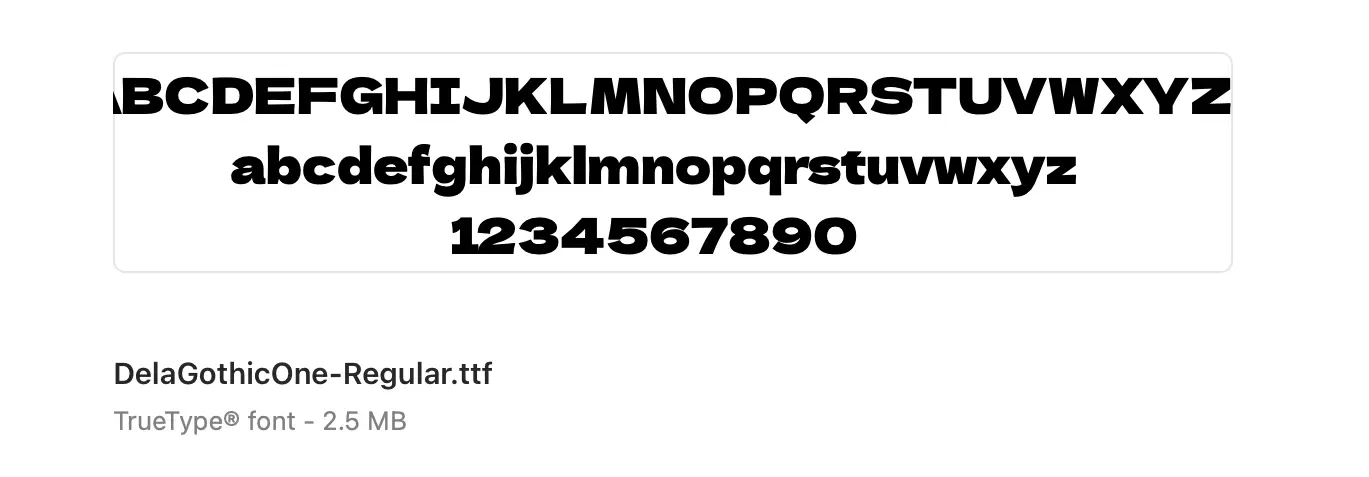
Because downloading our Dela Gothic One from Google Fonts, we get a TTF file that’s 2.5 MB large. Even compressing this with the newest WOFF2 format leaves it at 1.2 MB. The Lighthouse mobile simulator in PageSpeed uses a 1.6384 MBps connection, meaning a maximum download speed of 204.8 kB per second. So just downloading this one font would take 5.9 seconds, completely crushing any hopes of a perfect score.
Can we solve this?
Fortunately. Yes, we can.
Font Subsetting to the Rescue
You see, that Dela Gothic file is so large because it supports many different languages: it’s got Japanese Hiragana and Katagana characters in there, as well as both Cyrillic and Greek. But our website is English only. Which means that we can safely drop all of those characters that we’re never going to use. Nobody will notice.
Selecting what characters to include like this is called font subsetting, and it can dramatically lower the size of your font file.
Using a tool like FontSquirrel’s WebFont Generator, you can easily subset any font and convert it to the WOFF2 format. In our case, subsetting to basic Latin brought Dela Gothic One down from 1.2 MB to around 20 kB. Yes, you read that right: from 1.2 MB to 20 kB. That’s a 60x improvement.
After subsetting Dela Gothic One, we repeated the same procedure for the four varieties of IBM Plex Mono that we also use on our site.
The result? From an initial total 3 MB for all five fonts, down to a lean 104 kB in total.
Not bad. Not bad at all. And almost enough to ace the performance score.
But not quite.
So let’s take it to the next level.
Level 2: Preload
With the basics in place, let’s see how to get the fonts to start downloading sooner, so that the page can render faster.
Preload Font Files to Avoid Delay
Because the browser needs the font files to render the page properly, you need to make sure it starts downloading the fonts as early as possible.
In our case, we put our CSS in an external file, and load it like this:
<link rel="stylesheet" href="style.min.css">
And then in this CSS file we have something like this to set up the font:
@font-face {
    font-family: DGO;
    src: url("dgo.woff2") format("woff2");
    font-weight: 400;
    font-style: normal;
    font-display: block;
}
This is standard procedure. Nothing wrong about it. But, leaving it at this is not optimal.
Why?
Because set up like this, the browser has to first download the CSS file, and only after it has the CSS file, it will then know what fonts to download. In other words, this adds a whole TCP roundtrip delay before fonts can even start downloading. Not good.
Wouldn’t it be great if you could tell the browser what fonts to download straight up, before it has loaded the CSS?
Yes, it would. And you can do exactly that using a preload link.
If you open up the source code on the Hege website you’ll see something like this in the head of the HTML, before the CSS is loaded:
<link rel="preload" href="/r/2812802085.woff2" as="font" type="font/woff2" crossorigin>
<link rel="preload" href="/r/600843795.woff2" as="font" type="font/woff2" crossorigin>
<link rel="preload" href="/r/915512105.woff2" as="font" type="font/woff2" crossorigin>
<link rel="preload" href="/r/3997950749.woff2" as="font" type="font/woff2" crossorigin>
<link rel="preload" href="/r/636367663.woff2" as="font" type="font/woff2" crossorigin>
This tells the browser exactly what fonts files will be needed. It can then go ahead and download them straight away, before the CSS has loaded. The delay from the extra roundtrip disappears, and the page loads a little bit faster. (Note: you need the crossorigin attribute even if you load the fonts from the same domain!)
At This Point, Fonts are Blazing Already
What we’ve shown so far with basic subsetting and preloading is simple, and it’s good enough to make your page really really fast. In fact, this is all we did for most of our pages. And if you stop here, that’s fine.
But. We didn’t stop here.
Because for our front page, we wanted to go all in and push it to eleven.
Enter: Level 3.
Level 3: Subsetmaxx and Inline
So how do we take it to eleven? We subset harder, and we inline.
Subset Harder to Make Fonts Even Leaner
Remember how we subset our fonts and got them down to a neat 104 kB in total? That’s perfectly fine for most pages. But for the front page where we want maximum performance, we can do even better.
How?
Using the fonttools Python library, we created custom subsets that included exactly the characters we needed. No more, no less.
The fonttools library includes pyftsubset, a handly command line tool to subset fonts with maximum control. This is the incantation we used to subset Dela Gothic One, our headline font:
pyftsubset \
   DelaGothicOne-Regular.ttf \
   --output-file=dgo-lean.woff2 \
   --text-file="chars.txt" \
   --flavor=woff2 \
   --layout-features=kern
In the chars.txt file, we can specify the exact characters to include. After analyzing our front page, we realized that we actually didn’t need any other characters for this font than these few:
ABCDEFGHIJKLMNOPQRSTUVWXYZabcdefghijklmnopqrstuvwxyz
 0123456789:$/-!.+()'
We then repeated this for our other font files. Doing so we also realized that we could completely remove the italic versions, because we actually didn’t use them on the front page.
The end result?
3 font files, 18 kB.
Yes, that’s from 3 megabytes unoptimized, down to 18 kilobytes optimized. Or in other words going from 14 seconds of font downloading on the PageSpeed mobile test, down to 88 milliseconds.
Now we’re talking.
And actually, this was enough to nail that perfect scorecard we wanted.
But it wasn’t doing so reliably.
Something was missing.
The Speed Index
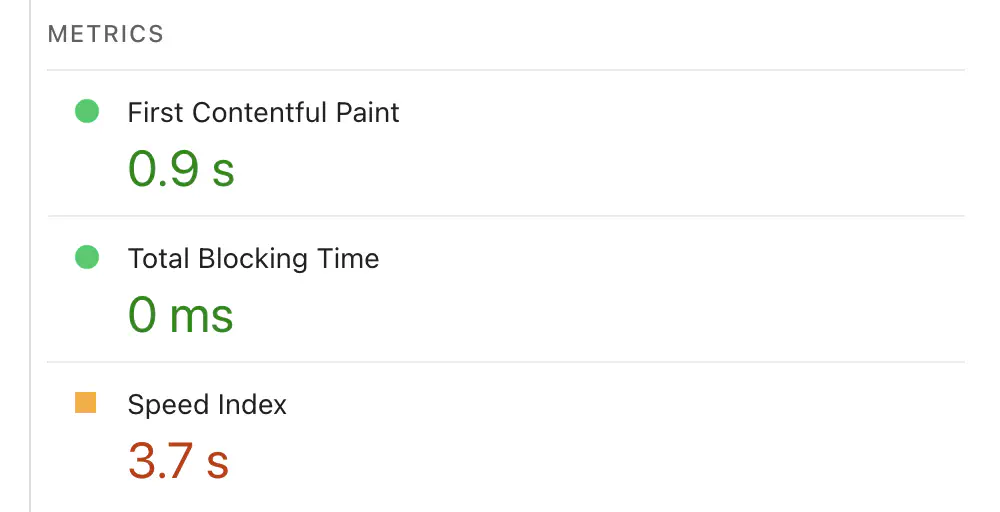
Looking at the test scores, we saw that the “Speed Index” part of the score was surprisingly big. It would consistently come in much higher than we expected it to.
Font Loading Was the Culprit
Reading up on this Speed Index, we learned that it measures the visual progress of the page loading — the sooner things are painted on the screen, the better the score gets.
After much poking around, we realized that the one thing keeping this number too high was delayed font loading.
You see, to maximize performance, we had also inlined all of our CSS (more about that in part 5). This meant that as soon as the browser had downloaded the HTML, it would start rendering the page right away. But because the fonts were not inlined, the browser did not have them available at this time. This caused a delay where the page would start to render, but then it would take some time until the fonts had been downloaded and could be displayed. This delay was what hurt the score.
To improve the speed index, we needed to make our fonts render sooner.
How?
By inlining them, too.
Yes, Fonts Can Also Be Inlined
As it turns out, in CSS any external file that is referenced using the url() function can actually be inlined. This is not widely used, but it’s right there in the documentation.
How to do it?
It’s simple: you base64-encode the file and then use the “data:” protocol to include it. For a font file in the WOFF2 format, this is how it looks:
url("data:application/x-font-woff2;base64,...") format("woff2");
Knowing this, we took our original font files, base64-encoded them, and inlined them straight into the HTML.
First we base64-encoded:
base64 -i dgo-lean.woff2 -o dgo-lean.woff2.base64
Then we changed our @font-face definitions to reference the base64-encoded data instead of the external font files, like so:
@font-face{
  font-family: DGO;
  src: url(data:application/x-font-woff2;base64,d09GMgAB...) format("woff2");
  font-weight: 400;
  font-style: normal;
}
And that’s all it took. Fonts were now inlined.
The result?

Much better.
You Have to Optimize the Font Files Before Inlining
Note that had we not optimized our font files so heavily first, inlining them would not have been possible. Obviously you can’t inline megabytes of data in the HTML, that would kill performance. But because we first got our font files down to a total of just 18 kB, we could easily inline them without bloating the HTML too badly.
In fact, even with all fonts and CSS inlined, the HTML for our front page comes in at just 35 kB gzipped. Which means that even on a janky 1.6384 Mbps mobile connection, that’s just 171 milliseconds of downloading before the browser can render everything on the page (except the images of course, which will be gradually filled in as they are downloaded).
Conclusion: Fonts Matter
With all these things in place, we finally landed consistent 100 perfect scores. There is no way we could have done that without heavily optimizing fonts.
To recap:
- We started out with 3 Mb of unoptimized fonts.
- By compression and extreme subsetting we got that down to 18 kB.
- This brought the font download time down from an absurd 14 seconds, to a neat 88 milliseconds, which got us close to the perfect performance score.
- Finally, inlining sealed the deal, locking in that sweet 100.
Step 3: Optimize Images
Of course, optimizing fonts wasn’t the only thing we had to do to reach PageSpeed Nirvana.
Getting our image game up to speed also played a large part.
But that’s for next week, when we’ll take a closer look at how to use modern image formats, combined with lazy loading and responsive image declarations.
Until then, have a great week, and make sure to jump into our Telegram and say hi to all the Hegends in there. Good vibes guaranteed!
— Team Hege
PS. Check out the piece “ICEGENA” below. This ULTIMATE collectible is up for sale on DRiP!